You're probably only using 3% of Raycast
May 29, 2026
Most people use Raycast for just a handful of things. To launch an app, do a quick sum, grab an emoji… maybe paste from clipboard history. That's already more than what most apps give you. And if that's all they need, that's fine! But Raycast can do so much more.
Each of those is one feature doing one job. That's the ceiling most people hit. Not because they're missing some secret command or anything like that. But because they never connect the features they already know.
Here's the thing though. Every Raycast feature works fine on its own. A snippet is cool. A hotkey is cool. A quicklink is cool. But put them together and you get something none of them can do alone. Highlight a word anywhere on your computer, hit one hotkey, and it's looked up and open in front of you. No typing, no clicking. That's when things start to get really cool!
Once you start connecting things together, you start to build a totally personalised way to use your machine.
When you see it that way, Raycast stops being a launcher. It becomes the thing you run your whole day through, without breaking your flow state.
By the way, everything I'm about to show you is included is free, with the exception of AI (but you can BYOK if you want).
Getting more out of it means combining these:
- hotkeys and aliases, so anything is one keystroke away
- quicklinks with arguments, which turn a saved link into a tiny app
- snippets and dynamic placeholders, a text library that fills itself in
- clipboard history, used as memory (your second brain?), not a buffer
- the built-in commands most people never find. Window management, search menu items, screenshots, the calculator
- extensions, that hook Raycast into thousands of other apps
- the AI integration, from Quick AI and commands to chat, skills, and extensions
- the keyboard layer that ties it all together
The keyboard layer
Start here. The less you use the mouse, the more efficient you'll be.
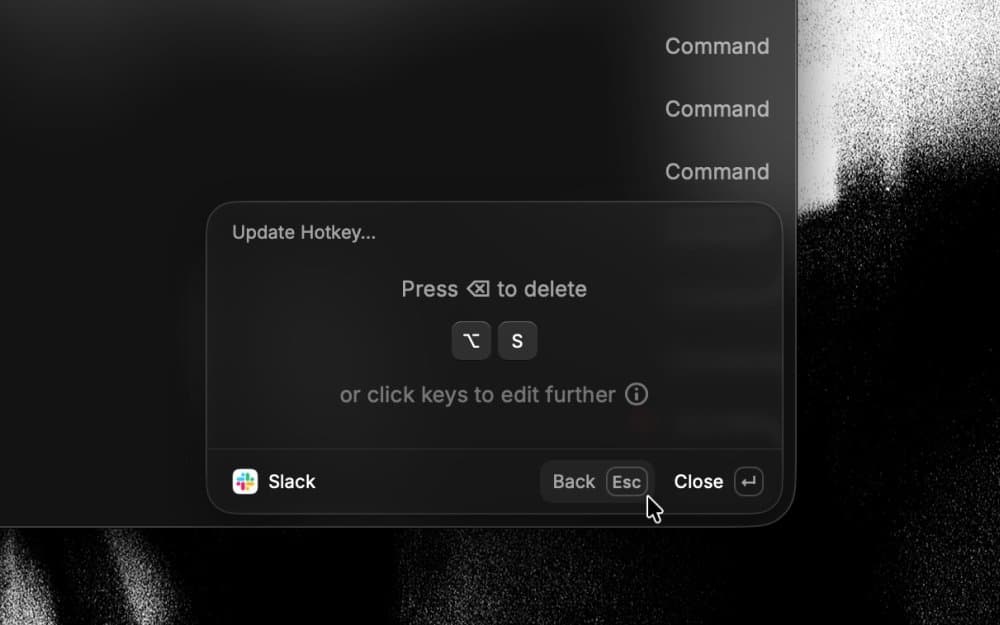
Hotkeys. A hotkey is a global shortcut that fires it even when Raycast is closed.
Set a hotkey for the handful of commands you reach for all the time. ⌥ + N for Notes. ⌥ + S for Slack. The new recorder takes single-tap fn that you can use for Dictation. Hotkeys can also be double-tapped modifiers, and soon we'll add support for left and right modifiers as separate keys. You're building muscle memory, one binding at a time.
By the way, I'm using ⌥ in these examples because I'm on a Mac, but if you're on Windows, you can use ctrl instead or whatever makes sense to you.
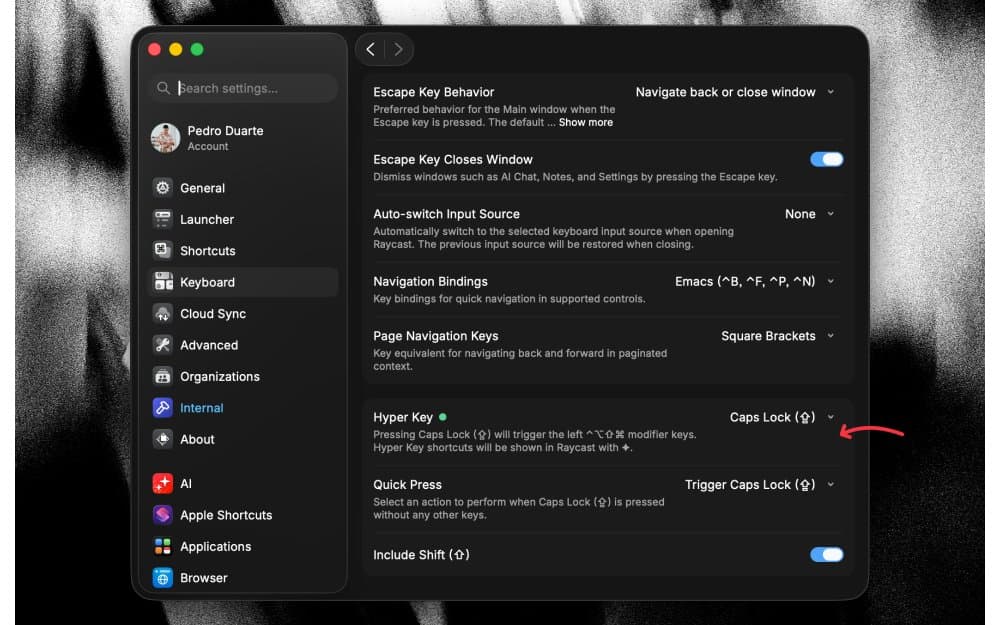
Hyper Key. Turn a dead key, usually caps lock, into a single modifier that acts like holding ⌃ + ⌥ + ⌘ + ⇧ all at once. It's then represented as ✦
Once it's on, you've got a whole layer of shortcuts nobody else is using. ✦ + N for notes, ✦ + S for Slack, ✦ + T for your terminal. They never clash with anything, because no app ships shortcuts that gnarly. Set it up in Settings > Keyboard > Hyper Key. Congratulations, Raycast just got you a new key!
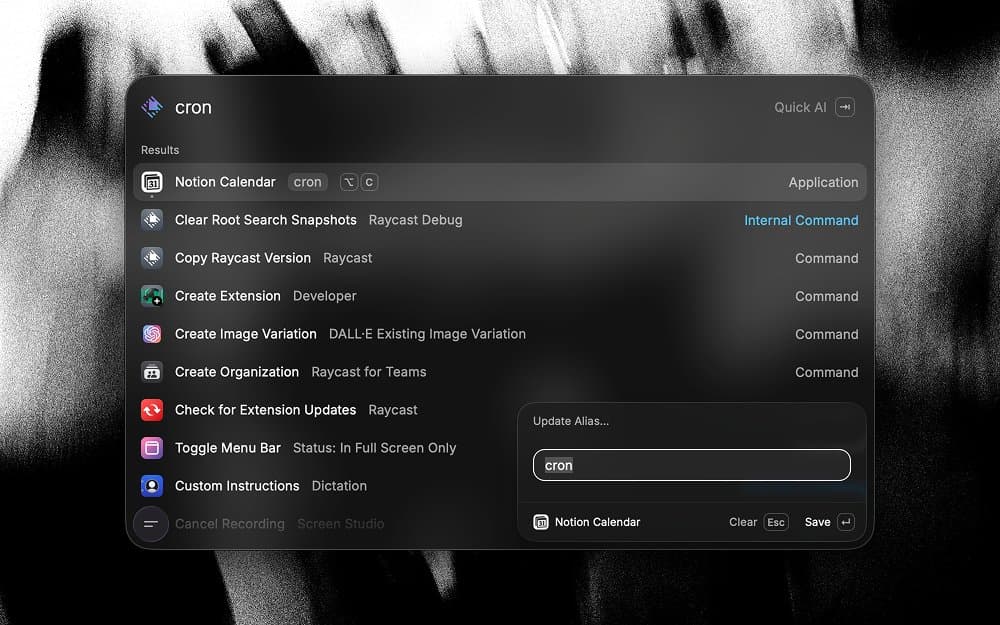
Alias. An alias is a short keyword of your choice that jumps straight to a command.
Set an alias so et empties the trash, or tr opens Translate, or cron opens Notion Calendar, or st to browse the Store, or even browser for whichever browser you're currently using. If you ever decide to change your browser, your muscle memory stays intact.
Here's a couple of built-in hotkeys you should be aware of.
The Action Panel (⌘ + K). Every item's menu. Whatever you've got selected, ⌘ + K shows what you can do with it.
The About Menu (⌘ + ⇧ + K). The meta stuff for whatever you're on. Configure the command, configure the extension, send feedback. Works from root search or inside any command. This is new in v2.
And when you're four screens deep in some extension, don't hit Escape eight times. ⌘ + Escape takes you straight back to root. It's a small thing which I use every single day. You'll too use it every day once it's in your hands.
Quicklinks are tiny apps
One of the most underrated feature in Raycast, because people stop at "saved bookmark." Once you start using it, you won't stop!
Quicklinks. A saved URL, file path, or deeplink that opens in one action. And with arguments, it asks you for input first.
The basic version: a quicklink to ~/Projects/my-app that opens in your editor instead of Finder. A deeplink straight to a Spotify playlist or a Slack channel, so you skip the app's own navigation.
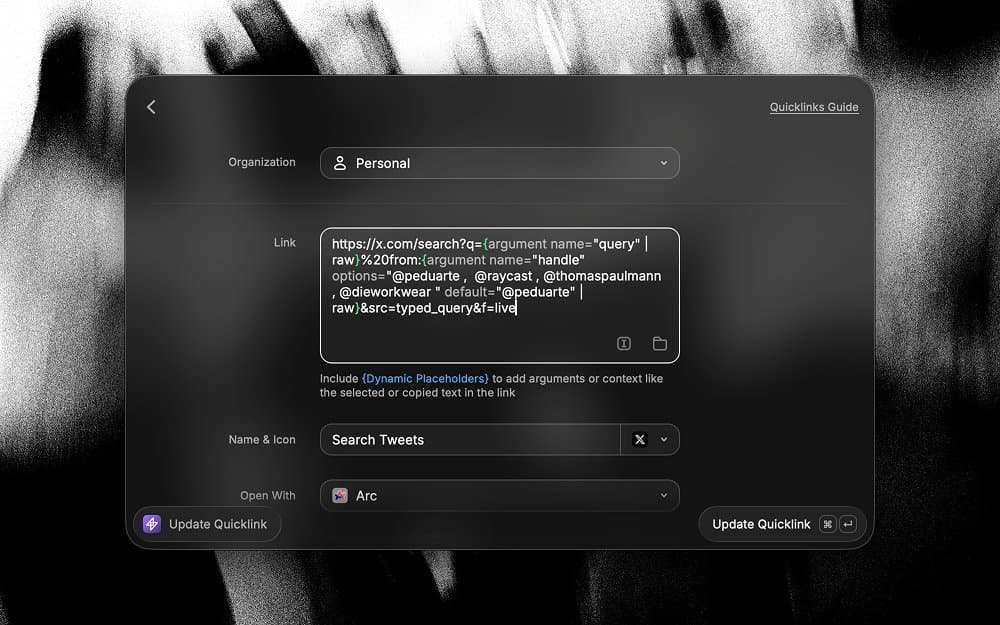
The version nobody uses: arguments. A quicklink can ask you for input before it opens. A Google Translate quicklink that asks for the word and the language. A search quicklink for your own tweets that drops you straight into search results. You just built a single-purpose search tool in about thirty seconds. No code.
Now combine it with the clipboard. Copy a Linear issue ID. Open a quicklink that grabs {clipboard}, builds the full URL, and opens the issue. You never see the link. You just land on the page. Add a hotkey and the whole thing is one press: copy, hotkey, done.
That's three features doing one thing!
A text library that fills itself in
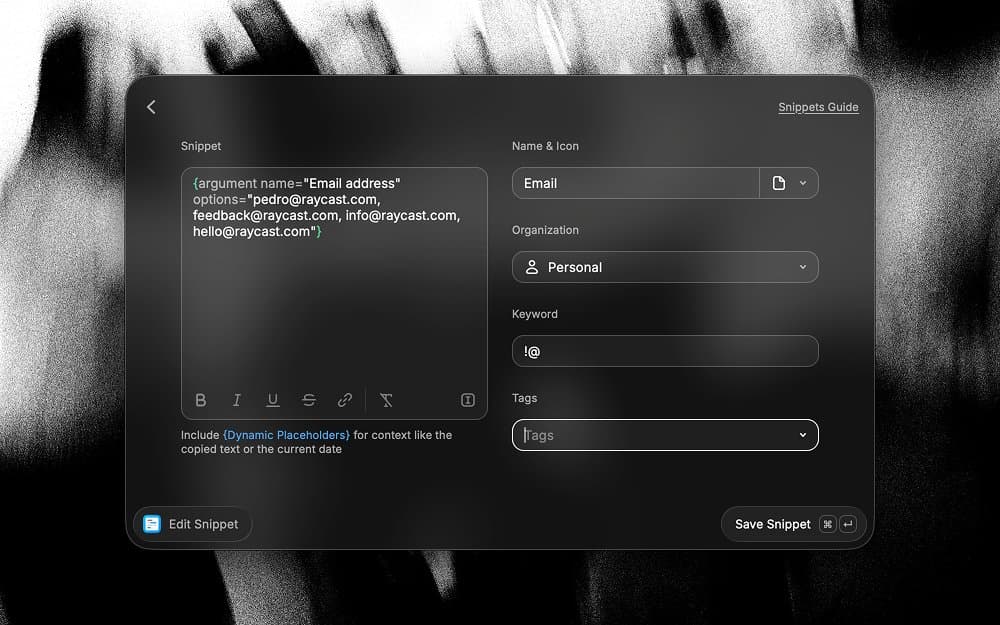
Snippets. A keyword that expands into a block of text, anywhere you type.
Email replies, code blocks, your email address, the same Slack message you send twice a week. But the real trick is treating snippets as a reference library, not just a shortcut. A photography cheat sheet. Your editing shortcuts. Your V60 ratios. Stuff you want to glance at, not just paste.
Then make them dynamic.
Dynamic placeholders. Tokens inside a snippet or quicklink that get swapped for live data when it expands.
{date offset="+7d"} writes the date a week from now. {clipboard} drops in whatever you last copied. {cursor} puts your cursor where you want it after expansion. The new {calculator} placeholder does maths inline.
So a reply snippet can say "a team member will get back to you before {date offset="+7d"}" and fill in the real date every time. Set it up once. It stays right forever.
The clipboard history is memory, not a buffer
Most people treat the clipboard history as one in, one out. Stop doing that and it becomes one of Raycast's best features. Probably the command I use the most.
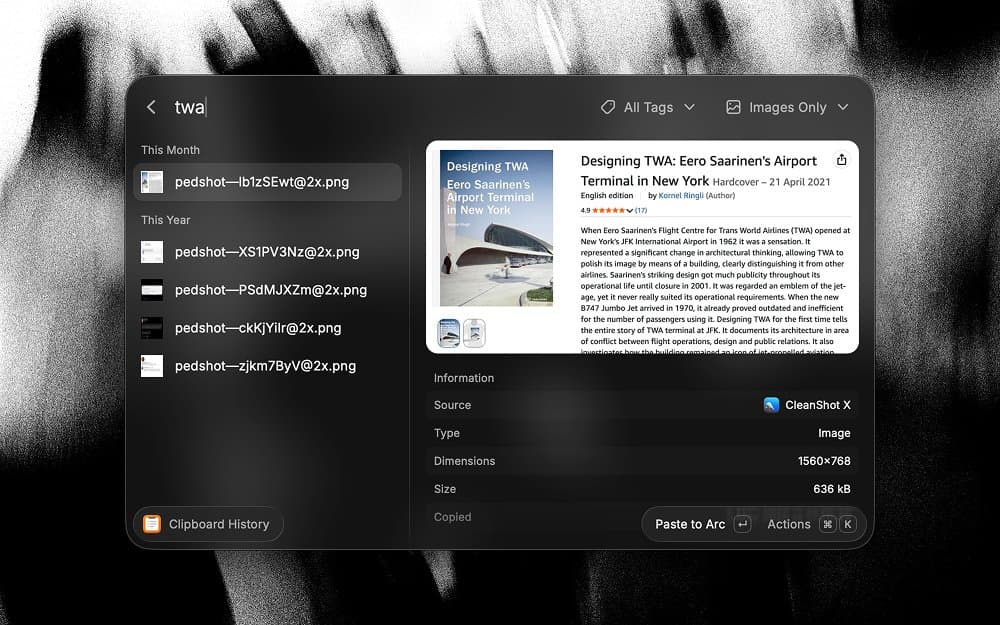
Everything you copy is kept, and it's searchable. So the shift is simple. Anything worth remembering, just copy it. A line from an article, tracking number, an address, an image. You're not deciding whether to save it. You're trusting it'll be there when you go looking later. I think of it as my second brain.
Two combos make it sing.
Catch yourself copying the same thing over and over? Select it in clipboard history, hit ⌘ + K, Save as Snippet. The clipboard is telling you what should be a snippet.
Paste Sequentially. Copy a few things, then paste them one after another across a form, field by field. Add a line break between each if you want.
It also keeps the original format of everything you copied, so a paste matches the source exactly. The clipboard stops being a holding pen. It's short-term memory you can act on.
If you're on the free plan, you can keep your history for up to 3 months. Pro subscribers can keep it forever (that's what I do).
The commands hiding in plain sight
Built in, free, and most people never find them.
Window Management. Resize, tile, and move windows from the keyboard without the need of a third-party app. The trick is one consistent base. Mine's ⌘ + ⌃ + ⌥, then ← → for halves, 1–4 for quarters, C to centre, F to maximise. Muscle memory in a day.
Search Menu Items. Search every menu in the app you're in. A lifesaver in something like Final Cut or DaVinci Resolve, where the thing you want is four menus deep. But use it to learn, too. Look for "copy URL" in your browser and you'll spot "copy URL as markdown" sitting right below it. Now you know something new about an app you use every day.
Search Screenshots. Point it at your screenshots folder and it finds images by the text inside them. After the screenshot with "magic at your fingertips" in it? Search the phrase. Works on clipboard images too, and you can pull the text straight out.
The Calculator. It's not a calculator. 15% tip on 42. 5 feet 3 inches in cm. time diff Tokyo. days until 1 Aug. And the bit nobody knows: open Calculator History, pin a result, and it stays live. Pin days until your trip and it counts down every time you look.
System Commands. Empty the trash, lock the screen, toggle dark mode, sleep the displays, quit every app but the one you're in. The stuff you'd normally dig through menus or System Settings for, one search away. Give the ones you use an alias. et for empty trash, and you'll never open Finder for it again.
Focus. Block the apps and sites that pull you off course, start a session, get your head down. It's v1 only for now, not in v2 yet, but if you keep losing twenty minutes to a tab you didn't mean to open, it's worth firing up the old app for.

Going even further
Everything so far is built in. But the Store is where Raycast stops being one app and starts hooking into all the others.
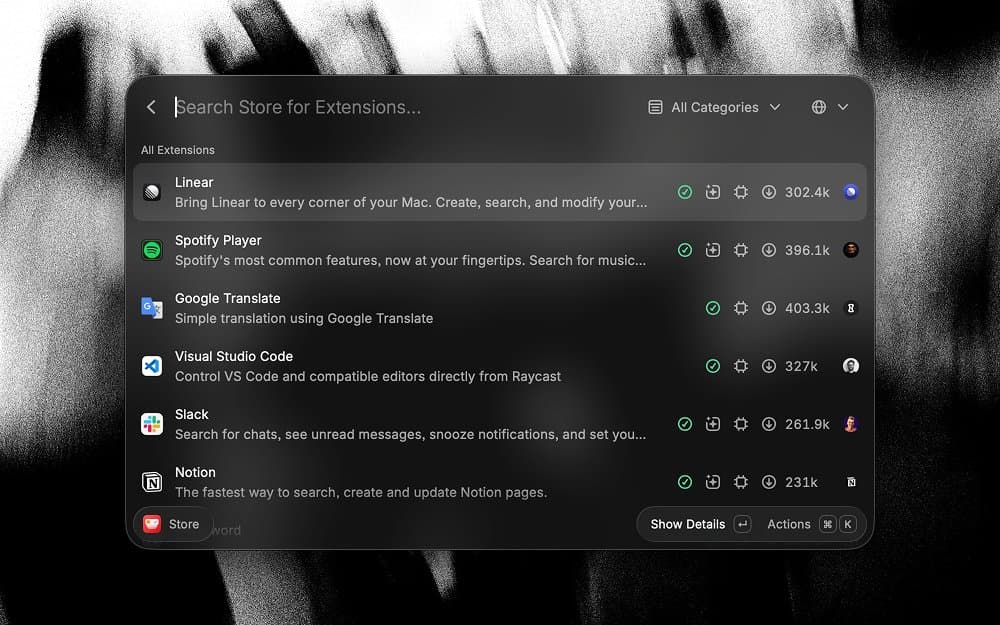
Extensions. Community-built commands you install from the Store. Thousands of them. A search shortcut, a small utility, or a deep integration with a tool you already use.
Linear, GitHub, Spotify, Vercel, 1Password. Your tickets, your deployments, your music. Instead of opening each app to do one small thing, you do it from root search and carry on.
The point isn't that there are thousands. It's that they behave like everything else you've already set up. An extension command takes an alias, a hotkey, an argument, same as a built-in. So the Linear extension plus a hotkey plus "use selected text as argument" is the same trick from earlier, just pointed at a different tool. Nothing new to learn. Same wiring, more reach.
They feed the AI too. Type @ in chat and your installed extensions show up as tools. @linear, @github, @spotify. The AI works out which one to call. So the thing you installed to save a few clicks quietly becomes something the AI can drive for you.
And they're all open source. If an extension does almost what you want but not quite, find one of its commands, hit ⌘ + K, Fork Extension. You get a local copy to run and change. Fix the bug, add the thing, push it back so everyone gets it. Try that with a normal Mac app.
And then there's the AI
I left this for last on purpose. Not because it's an afterthought but because it works best once everything above is in place.
AI in Raycast isn't a chatbot bolted on the side. It's another layer that reaches into the stuff you've already set up.
AI Chat. A real conversation that keeps its history, attachments, and tools across days. Not a box that resets every time.
It's a workspace now, not a one-shot. Branch off any message to try a different angle without losing the thread (⌘ + ⇧ + B). File chats into folders, so the ones you come back to, a writing chat, a project chat, stay where you can find them. Turn on Memory and it holds the durable stuff. Who you are, what you're working on, how you like your answers. You set it once, just by using it.
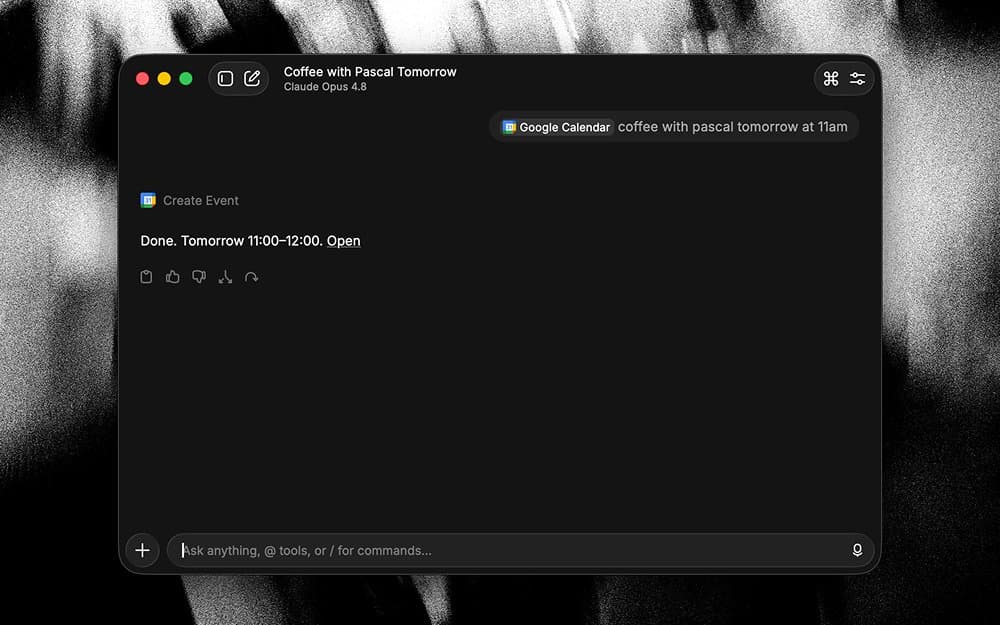
It acts on them in plain language. Attach a file, a note, a clipboard entry, a screenshot, and ask about it. Same parts, same wiring, one more thing pulling them together. Then it plugs into everything else. Type @ and it reaches your tools like @calendar, @linear, @github.
Skills. Reusable context you write once. Your conventions, your knowledge, the way you like things done. Raycast loads it automatically when it's relevant.
Drop a SKILL.md in a folder and you stop explaining yourself every chat. An extension gives the AI a tool. A skill gives it the context to use that tool the way you would. That's the pair. One to do the thing, one to do it properly.
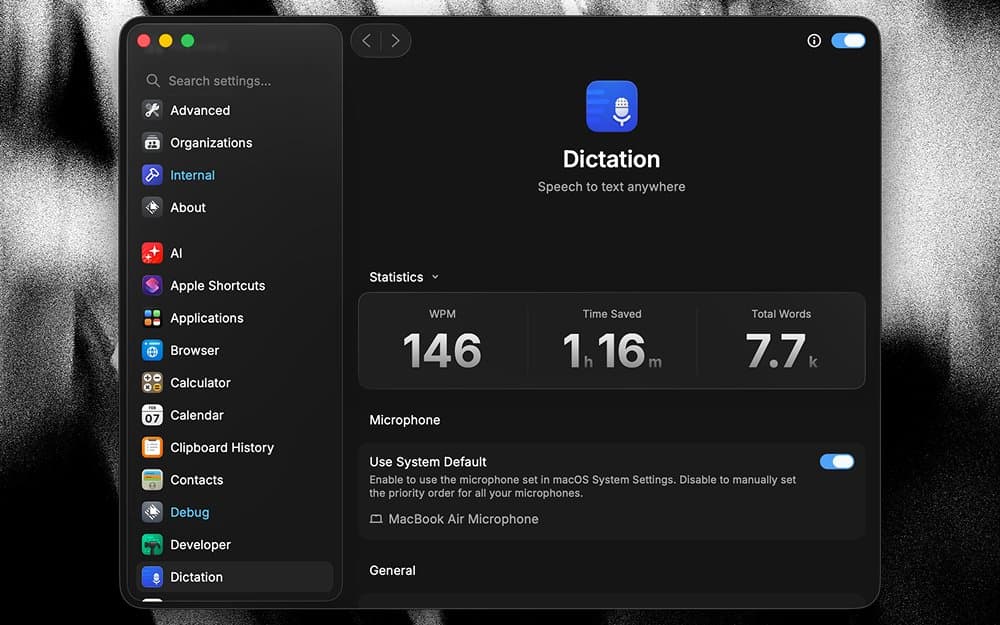
Dictation. Speak, and Raycast turns it into clean, formatted text. Filler words gone, punctuation sorted, pasted straight into the app you're in.
Tap the hotkey (mine is ✦ ⎵), talk, tap again. The rough version of a thought, the one that's easy to say but a pain to type, is often enough. And it knows where it's landing. Dictate into Mail and it comes out as an email. Into Slack and it comes out as a quick message. Same sentence, shaped for the room.
What it adds up to
Here's the test. Pick one thing you do with a mouse five times a day. A folder you open, a search you run, a message you retype, a window you drag into place.
Now wire it up. A hotkey, a snippet, a quicklink with a hotkey, a snippet with a placeholder, a clipboard entry you turn into a template. Thirty seconds of setup against a year of doing it the slow way.
Do that ten times and Raycast stops being the thing you open to launch apps. It becomes the way you use your computer.
You can download the new Raycast from raycast.com/new.